
Fill the cutting system with coolant

Use the correct amount and type of coolant mixture to help prevent damage to the cutting system.

  • Calculate the correct percentage of propylene glycol to add in the premixed Hypertherm® coolant (028872).
  • Refer to Coolant requirements.
  1. Remove the power from the cutting system:
    1. Set the line-disconnect switch to the OFF position.
    2. Make sure that the power-indicator Light Emitting Diode (LED) on the plasma power supply is not illuminated.
  2. Make sure that you have the correct coolant mixture for your cutting system.
  3. Remove the cap from the reservoir inlet on top of the plasma power supply.
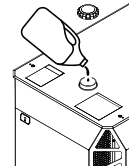
    The image shows the reservoir inlet location on the XPR170 and XPR300 plasma power supply.
  4. If the coolant is below the inlet, add the coolant in the reservoir until the coolant is at base of the inlet.
  5. Install the cap onto the coolant reservoir.
  6. Supply the power to the cutting system:
    1. Set the line-disconnect switch to the ON position.
    2. Make sure that the remote on-off switch is in the ON position.
    3. Make sure that the green power-indicator LED is illuminated on the plasma power supply.
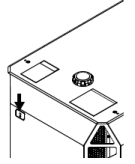
      This image shows the power-indicator Light Emitting Diode illuminated.
  7. Use the Computer Numerical Control (CNC) or XPR® web interface to send a process to the plasma power supply and start the coolant pump.
    • When you send a process, the gases start to flow, and after a few seconds the coolant pump starts.
    • If the pump stops, it is necessary to purge the air out of the coolant loop.
    • Use the remote on-off switch to start and stop the coolant pump until the pump continues to run.
  8. If necessary, add more coolant to fill the reservoir to the base of the reservoir inlet.

After you add the coolant, use the CNC or XPR web interface to cancel the low-coolant diagnostic code or select a process.