
Use wireless or Ethernet LAN to enable or disable manual-set mode
Do these steps to use the XPR® web interface through Wi-Fi® or Ethernet Local Area Network (LAN) to enable or disable manual-set mode.
You must have a computer-based device with a screen, a web browser that has support for the latest web standards, and wireless access if using the XPR web interface through Wi-Fi to connect.
-
Choose the correct button for the condition you want:
ENABLE or DISABLE.
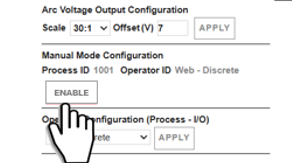
When manual-set mode is enabled, the cutting system automatically uses the active process that was set in manual-set mode every time power is supplied to the cutting system until that process is canceled or changed.
Do the procedure in Process selection if you want to change or cancel the setting, offset value, or detection mode for the active process that was set in manual-set mode.