
Access the XPR web interface after setup in network mode
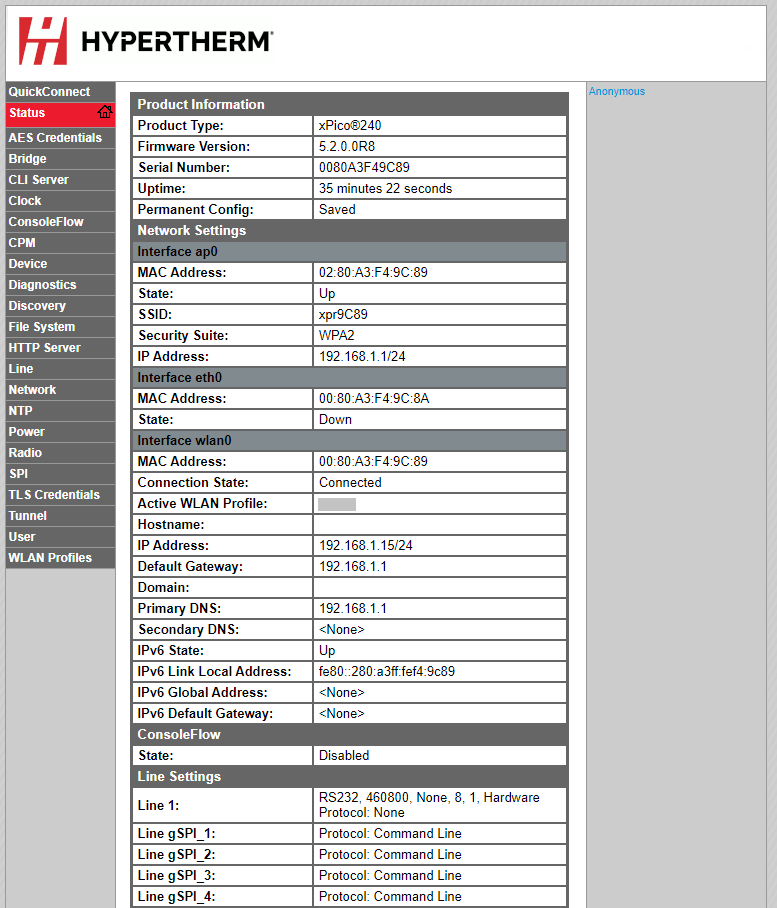
Use these steps to access the XPR® web interface using the Internet Protocol (IP) address of the plasma power supply.
Hypertherm® recommends that you use Dynamic Host Configuration Protocol (DHCP) reservation if it is available on your router. This lets the plasma power supply keep the same IP address through power cycles without having to set up the wireless module with the static IP address.
-
Look in the Interface wlan0 fields on the
Status screen to find the IP address that you want.
The change goes into effect after you remove and then supply power to the cutting system.